You may already copy photos and work files to another drive. But would that help if Windows stopped starting? It depends on what you saved. A file backup can bring back chosen folders. A system backup can bring back Windows, your apps, and your settings as one image.
For most home PCs, the useful answer is to keep both. Back up important files often, then make a system image for bigger problems. AOMEI Backupper Standard is a backup software that can create file, system, disk, and partition backups on Windows 11, 10, 8.1/8, and 7.
Choose the Backup That Fits the Job
The word “backup” can mean several things. The right choice comes from what you want to get back.
- File backup: Use this for documents, photos, videos, and project folders. This works well for data that changes each day.
- System backup: Use this when you want a way back after Windows will not start or a major change goes wrong. AOMEI Backupper Standard picks the system partitions automatically, including the operating system, installed apps, settings, and data.
- Disk or partition backup: Create a disk backup to include everything, or opt for a partition backup to back up just a single volume.
This decision makes or breaks your Windows backup strategy. File backups are easy to dig through, but they won’t save a broken PC. System images cover everything, so you can schedule them far less frequently than daily files.
Pick a Safe Place for the Backup
Save the backup away from the drive it protects. If the source drive and the only backup are on the same physical disk, one disk fault can affect both.
An external HDD or SSD is a simple choice. You can can also save images to a USB device, cloud drive, network share, or NAS that Windows can reach. Check the free space before the first run.
The target must be available when the task runs. Connect an external drive before a schedule backup. For a NAS, make sure the IP address and password still work. Meanwhile, you have the permission to access it.
How to Back Up the Files That Change Often
Start with the folders you use each day. You can choose the exact items to protect.
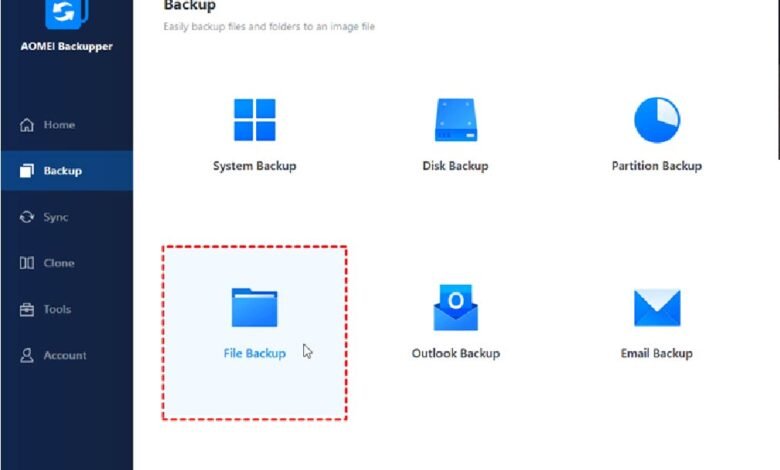
Step 1. Open AOMEI Backupper Standard and choose Backup > File Backup.
Step 2. Choose Select Source > This PC/NAS/Network Share to pick the items you want, or skip browsing and paste the path directly. Then, click the PC icon to select a destination. You can choose an existing location or a new one.
Step 3. ClickSchedule Backupto set up a daily, weekly, or monthly time that fits how you use the PC.At last, click Start Backup.
It will create a full backup at the first time. Afterward, the software will automatically create incremental backups on subsequent runs – keep multiple backups while using significantly less time and space.
You can also customize settings like compression level, backup methods, splitting, etc., to further manage your backup time and space.
How to Create a System Backup for Bigger Problems
The steps below create a system image backup for disaster recovery.
Step 1. Open AOMEI Backupper Standard, choose Backup from the left menu. Then, clickSystem Backup. The program will pick the system partition automatically for you.
Step 2. Click the PC iconand expand This PC/Network Share/NASto choose a destination, from external drive to USB device, network drive, etc.
Step 3. ClickSchedule Backupand select how often you want it to run. Then, click Start Backup.
Keep the PC on and do not unplug the target drive during the job.These steps also applies to a windows 11 backup.
Make Sure You Can Use the Result
A completed message does not tell you everything. Open Tools > Check Image to test whether the image is valid. You can also use Explore Image to mount an image as a virtual drive. This lets you open it and check that expected folders are present.
Create Windows PE bootable media on a spare USB drive. If Windows cannot start, it can load the AOMEI recovery environment. You can then find the system image and begin a restore. Make the recovery media while the PC is working.
If a task fails, check the simple causes first. Make sure the target drive is connected and the drive has enough free space. For a network drive, test if you can access it on the computer. The task log can then point you to the next check.
Start With the Data You Need Most
Use file backup for items that change often. Add a system backup when you also want to recover Windows and your apps. Store both away from the source disk, set a schedule you can keep, and check the image after it is made. The next step is simple: connect a backup drive and create the first task before you need to restore anything.