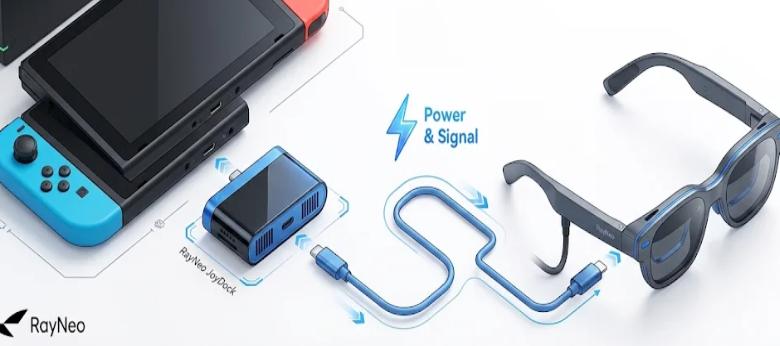
The Steam Deck packs real PC gaming power into a handheld. But its built-in screen — whether the 7-inch LCD or the 7.4-inch OLED — still limits what you can see. AR smart glasses turn it into a private, wall-sized display without carrying a monitor.
This guide covers the full setup process, compares leading augmented reality smart glasses in 2026, and identifies which specs matter for Steam Deck gaming. Whether you play on flights or from the couch, this combination deserves a close look.
The short answer: yes, most Steam Deck owners gain a noticeably better experience. The longer answer depends on which glasses you choose and the games you play.
Why the Steam Deck Needs a Larger Display
Both Steam Deck models — the 7-inch LCD and the 7.4-inch OLED — compress UI elements into a small footprint. Complex menus, inventory grids, and dialogue trees stack into dense clusters that force constant squinting or zooming, especially in games with layered interfaces.
Titles like Baldur’s Gate 3, Elden Ring, and Civilization VI demand more screen real estate than any sub-8-inch panel delivers. Players resort to font scaling and constant panning — workarounds that break immersion and slow gameplay. AR smart glasses can significantly reduce this friction.
That is exactly why AR smart glasses have gained traction among Steam Deck owners. Augmented reality smart glasses project a virtual screen — commonly over 100 inches equivalent — directly into your line of sight, all through a single USB-C cable. No monitor, no tripod.
How to Set Up AR Smart Glasses with Your Steam Deck
Connecting a pair of AR smart glasses to the Steam Deck is straightforward and requires less than five minutes. The entire setup relies on USB-C with DisplayPort Alt Mode. Most models on the market need zero software installation because the Deck handles display detection and output configuration natively.
What You Need Before Starting
- Update SteamOS to the latest version.
- Confirm your glasses support DisplayPort Alt Mode over USB-C.
- Charge the Steam Deck above 50 percent.
Most augmented reality smart glasses released in the past two years support DisplayPort Alt Mode natively. If you are unsure, check the manufacturer’s compatibility page before purchasing. The USB-C cable included with the glasses typically works out of the box.
Connection and Display Settings
Plug the glasses into the USB-C port. SteamOS recognizes them as an external display within seconds. Navigate to Settings, then Display, and set the output resolution to 1920×1080. Choose between 60Hz and 120Hz based on your performance target — most demanding titles run smoother locked at 60Hz on this hardware.
Enabling HDR Output
If your system, game, and augmented reality smart glasses all support HDR, try enabling HDR output under the Deck’s display settings for richer tonal range. Among the three models compared in this guide, the RayNeo Air 4 Pro is the only AR smart glasses with HDR10 certification.
What Specs Matter Most for Steam Deck Gaming
Not every pair of AR smart glasses performs the same with the Steam Deck. The difference between a worthwhile upgrade and a disappointing purchase often comes down to four key specifications. When evaluating augmented reality smart glasses for portable gaming, prioritize the following factors:
- HDR support and color gamut coverage
- Total weight and weight distribution
- Refresh rate compatibility with Steam Deck output
- Built-in audio quality and speaker configuration
HDR Support and Color Accuracy
HDR10 matters more than peak resolution for Steam Deck use. The Deck outputs HDR over USB-C to compatible displays, unlocking wider contrast, richer color gamut, and deeper shadow detail. Games designed for HDR look noticeably flatter and less vivid when viewed on standard dynamic range panels.
Weight and Long-Session Comfort
Anything above 80 grams creates noticeable pressure after 30 minutes of continuous use. Weight distribution matters as much as total weight — front-heavy glasses slide down the nose and cause fatigue. The leading competitive models weigh between 76 and 88 grams, a range where even small differences affect long-session comfort.
Refresh Rate and Built-In Audio
External output via the Steam Deck’s USB-C port can support up to 120Hz, depending on the resolution and connected display. Not all games hit that framerate on this hardware, so switchable refresh support matters. Built-in speakers in augmented reality smart glasses also reduce the need for separate headphones in portable setups.
How the Top 2026 Models Compare
Three brands lead the AR smart glasses space for Steam Deck gaming in 2026: RayNeo, XREAL, and Viture. Each uses micro-OLED displays and USB-C connectivity, but they differ in resolution, spatial tracking, weight, and price. The table below covers the key current specifications.
Side-by-Side Spec Comparison
| Spec | RayNeo Air 4 Pro | XREAL 1S | Viture Beast |
|---|---|---|---|
| Price | $299 | $449 | $549 |
| Weight | 76g | 82g | 88g |
| Resolution | 1080p/eye | 1200p/eye | 1200p/eye |
| HDR10 | √ | × | × |
| Refresh Rate | 120Hz | 120Hz | 120Hz |
| 3DoF | × | √ | √ |
| Audio | Bang & Olufsen | Bose | Harman |
Each model has clear strengths. The Air 4 Pro is the lightest at 76 grams and the only one with HDR10. The XREAL 1S (82g) adds 3DoF screen anchoring and Bose-tuned audio via its X1 spatial chip. The Viture Beast (88g) pairs 1200p-per-eye resolution with built-in 3DoF and 1250-nit peak brightness.
Price and Value Breakdown
At roughly $299, the Air 4 Pro undercuts both competitors while delivering the only HDR10 display among the three. Users who prioritize 3DoF spatial anchoring or higher per-eye resolution may lean toward the XREAL 1S or Viture Beast. For HDR-first gaming on Steam Deck, the Air 4 Pro’s weight and price give it an edge.
Games That Benefit Most
Not every genre gains equally from AR smart glasses on the Steam Deck. The display upgrade matters most where screen size directly affects gameplay — dense interfaces, atmospheric environments, and text-heavy narratives improve most. Other genres may see minimal benefit from the larger virtual screen.

Top Picks by Genre
- Baldur’s Gate 3 — complex UI and inventory management
- Elden Ring — atmospheric open world with native HDR support
- Civilization VI — full strategic map visibility
- Hades — vivid colors benefit from wide gamut displays
- The Witcher 3 — cinematic presentation and environmental detail
Open-world and cinematic titles gain the most from augmented reality smart glasses on the Steam Deck because they rely on environmental detail and lighting cues that a small screen compresses. RPGs with dense text interfaces improve immediately since readable fonts no longer require constant zooming or scaling.
Genres That Benefit Less
Fast-paced competitive shooters like Counter-Strike 2 gain less from this setup. Input latency sensitivity and rapid visual tracking make a dedicated monitor preferable for ranked play. Puzzle games and side-scrollers also work fine on the Deck’s built-in screen without the augmented reality smart glasses upgrade.
Final Verdict
AR glasses make the Steam Deck noticeably better for most gaming genres. The expanded virtual display, combined with integrated audio, transforms the handheld from a compromised portable screen into a genuine big-screen experience compact enough for any carry-on bag.
If HDR display quality, low weight, and competitive pricing top your list, the RayNeo Air 4 Pro stands out among current augmented reality smart glasses. For Steam Deck owners who value those traits, it represents a compelling option in a rapidly improving category.